PineGen AI Features
Instant Code Generation
Instant Pine Script AI Code Generation
PineGen AI helps traders turn ideas into usable TradingView strategies in seconds with AI for Pine Script that is built for speed, accuracy, and usability. Instead of spending hours writing and fixing code manually, users can describe their strategy in plain English and get Pine Script v6 code that is structured, readable, syntax-highlighted, and ready to use inside TradingView.
For beginners, it removes the coding barrier.
For advanced users, it reduces friction and speeds up the path from idea to backtest.
What This Feature Does
Turn natural language trading idea into Pine Script v6 instantly
No coding knowledge required
Users can create Pine Script strategies without learning syntax from scratch. PineGen AI makes Pine Script for TradingView more accessible by translating strategy ideas into code automatically.
Fast generation
Instead of manually building strategies line by line, users can generate code within seconds. This shortens the time between idea, testing, and refinement.
High code accuracy
PineGen AI is built to produce logic that is structured and reliable, helping users avoid unnecessary rewriting and reduce mistakes early in the workflow.
Bug-free code
Every output goes through real-time syntax checking before it reaches you, so the code compiles cleanly in TradingView’s Pine Editor without manual fixes.
TradingView-ready results
The generated code is created for practical use in TradingView, not just for display. Users can move directly from prompt to usable Pine Script strategy output.
How It Works
How PineGen AI code generation works
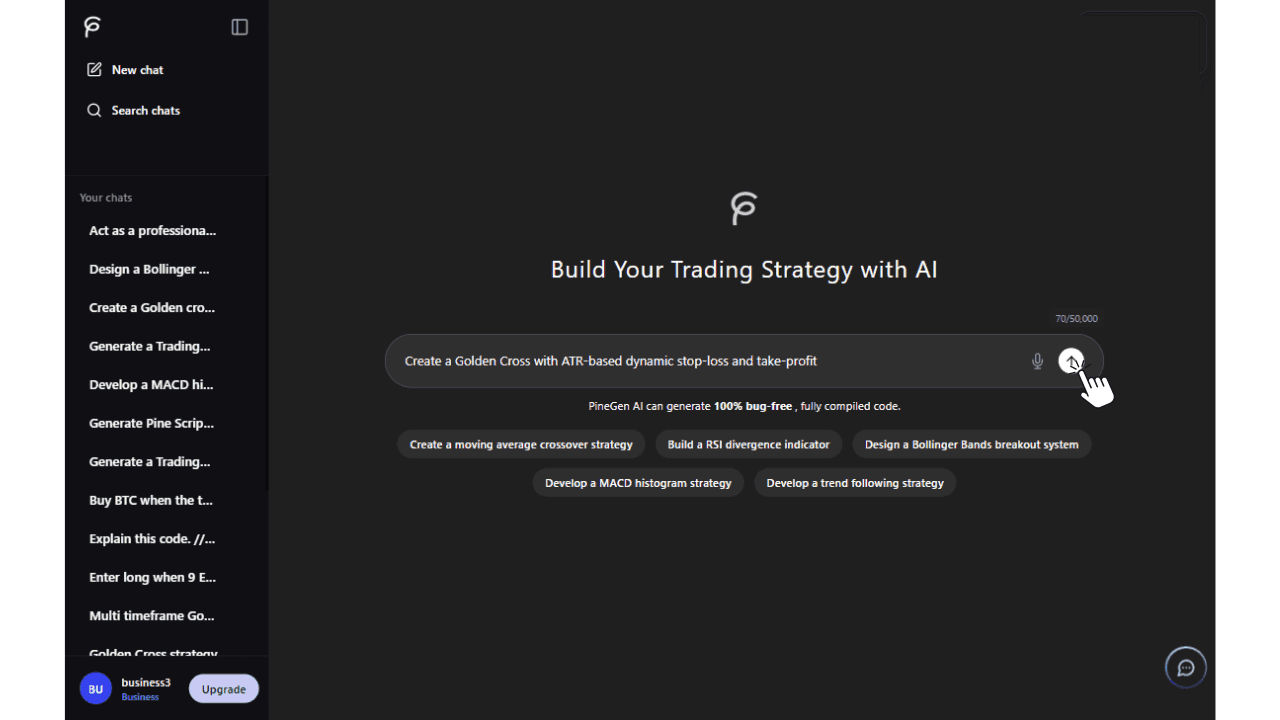
Describe your strategy idea
−Type your trading idea in plain English, including indicators, entry rules, exit rules, risk settings, or any custom logic you want.
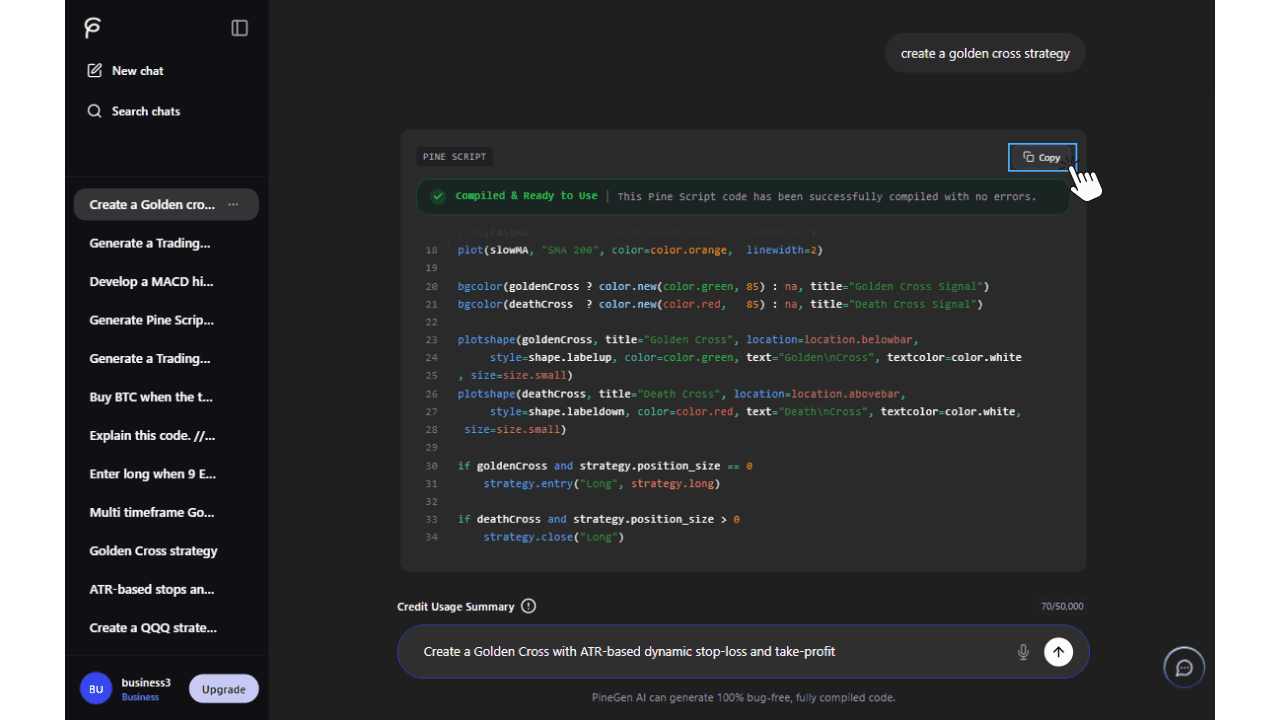
Generate clean Pine Script v6
+PineGen AI instantly processes your prompt and generates structured, valid code that's fully compatible with the latest TradingView standards.
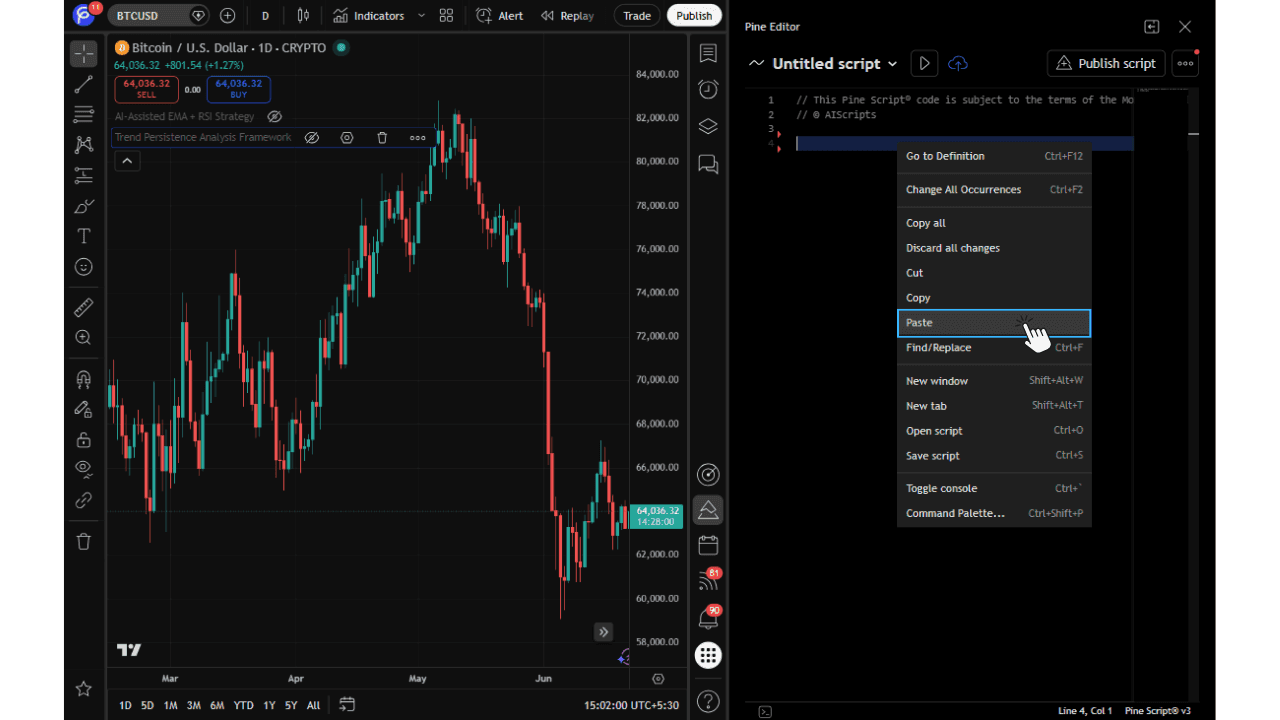
Test it on TradingView
+Copy the code, paste it into the TradingView Pine Editor, and immediately see your strategy applied to the live chart.
Generate Pine Script from your strategy idea instantly with PineGen AI.
Get StartedReal-Time Code Compilation and Validation
Real-Time Code Compilation and Validation for Pine Script
As you describe your strategy, PineGen AI runs the generated code through TradingView’s compiler rules in the background. Syntax errors, undefined variables, and logic conflicts are caught and resolved before the final output appears — so you skip the fix-paste-error cycle that slows down manual Pine Script development.
This is especially useful when debugging an existing script or working with complex multi-condition strategies, where a single misplaced bracket or undefined series variable can break the entire output.
What This Feature Does
Catches syntax errors before output is returned — validated against TradingView’s current compiler rules, not a generic linter.
Flags logic conflicts automatically — if your exit condition conflicts with your entry condition, the system notes it.
Works on new code and existing scripts — paste code you already have and PineGen AI validates it the same way.
Removes the fix-paste-recompile cycle — errors are resolved during generation, not after the output lands in your editor.
Core Benefits
Higher Code Accuracy
By validating code during generation, PineGen AI helps reduce avoidable issues and supports cleaner, more accurate output from the beginning.
Better Support for Correct Logic
This feature is not only about syntax. It also helps produce better structured Pine Script that is more suitable for actual TradingView strategy workflows.
Fast Generation with Fewer Interruptions
Users can move faster because less time is wasted on broken output, repeated syntax fixes, and manual correction cycles.
Easier Debugging
For users who want to debug code, repair existing scripts, or improve strategy logic, this feature helps make the troubleshooting process smoother.
More Beginner-Friendly
Users with little or no coding knowledge can still generate Pine Script with more confidence because the system helps validate the output during the workflow.
Stronger TradingView Readiness
The code is in a better state for the next steps, whether the user wants to refine it, explain it, preview it, or backtest it.
How It Works
How real-time code compilation and validation works in PineGen AI
Enter your strategy idea in plain English to start generating Pine Script.
−This image shows the starting point of the feature. The user describes what they want to build, fix, or improve, and PineGen AI uses that input to generate Pine Script. This makes it easier for users to begin without needing to write code manually.
PineGen AI generates Pine Script v6 and checks the code during the process.
+The system actively validates your logic against TradingView's compiler rules in real-time, catching and fixing syntax errors before the final output is presented.
Generate Pine Script with Real-Time Validation
Create faster, cleaner, and more reliable Pine Script for TradingView with PineGen AI.
Get StartedIterative Refinement / Code Refactoring
Improve, Fix, and Fine-Tune Pine Script Without Starting Over
Paste any Pine Script into PineGen AI — your own code, a previously generated script, or one copied from a public source — and describe what you want changed. PineGen AI returns an updated version with the requested modifications applied: fixed bugs, adjusted entries or exits, restructured logic, or a full conversion to Pine Script v6.
This avoids starting from scratch every time you spot an issue. Each refinement cycle builds on the previous version, so improvements stay cumulative rather than getting lost between sessions.
What This Feature Does
Code refinement support
Users can create Pine Script strategies without learning syntax from scratch. PineGen AI makes Pine Script for TradingView more accessible by translating strategy ideas into code automatically.
Debugging and error fixing
PineGen AI supports debugging by helping identify errors, fix issues, and clean up code structure so the script works more smoothly.
Strategy logic tuning
Users can fine-tune entry rules, exit rules, signals, conditions, and strategy behaviour without rewriting everything from scratch.
Pine Script v6 upgrade
PineGen AI helps update older Pine Script code to version 6, making existing scripts more modern, compatible, and easier to maintain.
Less repeated rework
Instead of recreating a script again and again, users can improve the existing output step by step, saving time during testing and optimisation.
How to Use It
Users can paste their existing Pine Script or generated code into PineGen AI and clearly explain what they want changed. This can include fixing bugs, improving entries or exits, adjusting logic, cleaning up structure, or converting code to Pine Script v6.
For the best results, it is recommended to provide both:
- the current code
- a clear explanation of what needs to be changed
This gives PineGen AI better context and helps it return more accurate improvements.
Core Benefits
Improve generated code before finalising it
Users can keep refining the result instead of accepting the first generation as the final output.
Fix bugs and debug code more easily
This feature helps users repair errors, correct broken logic, and improve scripts more efficiently.
Focus more on meaningful improvements
Less time is wasted on repeated syntax fixes, so users can focus more on logic, signal tuning, and better feature-building.
Supports Pine Script v6 conversion
Users can modernise outdated code and make it more relevant for current TradingView use.
Refine and improve Pine Script with less manual effort
Use PineGen AI to fix errors, fine-tune logic, and improve strategy code step by step.
Get StartedChat Continuation Memory
Continue Building, Refining, and Debugging Without Repeating Everything
PineGen AI's Chat Continuation Memory helps users continue the same Pine Script conversation more naturally. Instead of treating every prompt like a completely new request, PineGen AI can remember the context of the current chat, including earlier instructions, generated code, and recent changes. This makes it easier to keep improving a strategy, debug code, ask follow-up questions, or refine earlier output without repeating everything again.
This feature is especially useful for users who want to build a strategy over multiple prompts, make step-by-step improvements, or continue working on the same idea with less repetition and more clarity.
What Is Chat Continuation Memory?
Chat Continuation Memory keeps track of everything in the current conversation — earlier instructions, generated code, changes you requested, and the direction you’re heading. When you send a follow-up prompt, PineGen AI reads that context rather than treating each message as a fresh request.
In practice this means you can say “make the RSI period 7 instead of 14” without re-pasting the full strategy, or ask “why did you use a crossover here?” and get an answer that refers to the actual code rather than a generic explanation.
What This Feature Does
Remembers the context of the current chat
Helps PineGen AI follow earlier instructions and code changes
Makes follow-up prompts easier and more useful
Reduces the need to repeat the same strategy details
Supports step-by-step refinement, debugging, and code improvement
How to Use It
Users can start a chat in PineGen AI by entering a prompt to generate, fix, explain, or improve Pine Script. After the first response, they can continue using the same chat to ask for changes, request refinements, fix issues, or ask questions about the generated code.
For the best experience, users should keep the same strategy or coding task inside the same chat. This allows PineGen AI to use the earlier context more effectively and return more relevant follow-up responses.
Core Benefits
Less repetition
Users do not need to rewrite the same strategy details every time they want to make a change.
Better step-by-step refinement
This feature helps users improve one script over several prompts instead of restarting from scratch.
More efficient debugging
Users can ask PineGen AI to fix or explain code with awareness of what was already generated earlier in the chat.
More beginner-friendly
Beginners can continue asking follow-up questions in simple language without needing to restate the full request each time.
How It Works
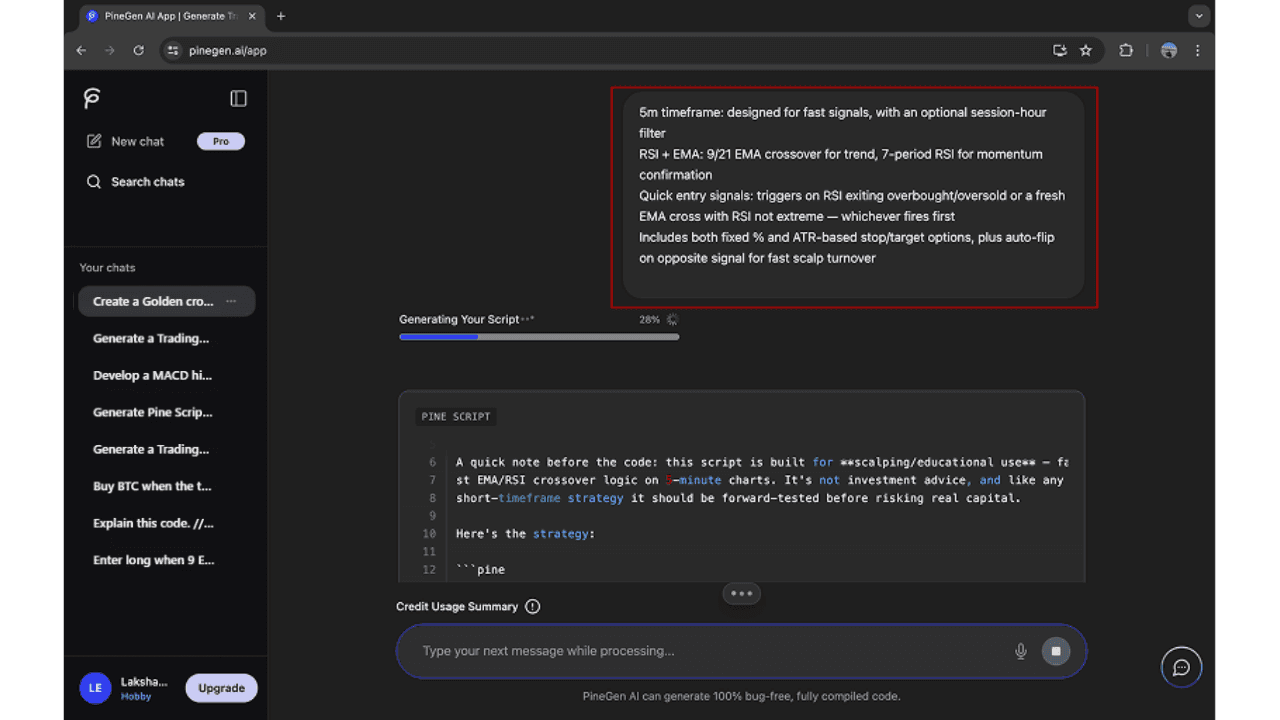
Start the conversation with your first Pine Script request.
−Type your trading idea in plain English, including indicators, entry rules, exit rules, risk settings, or any custom logic you want.
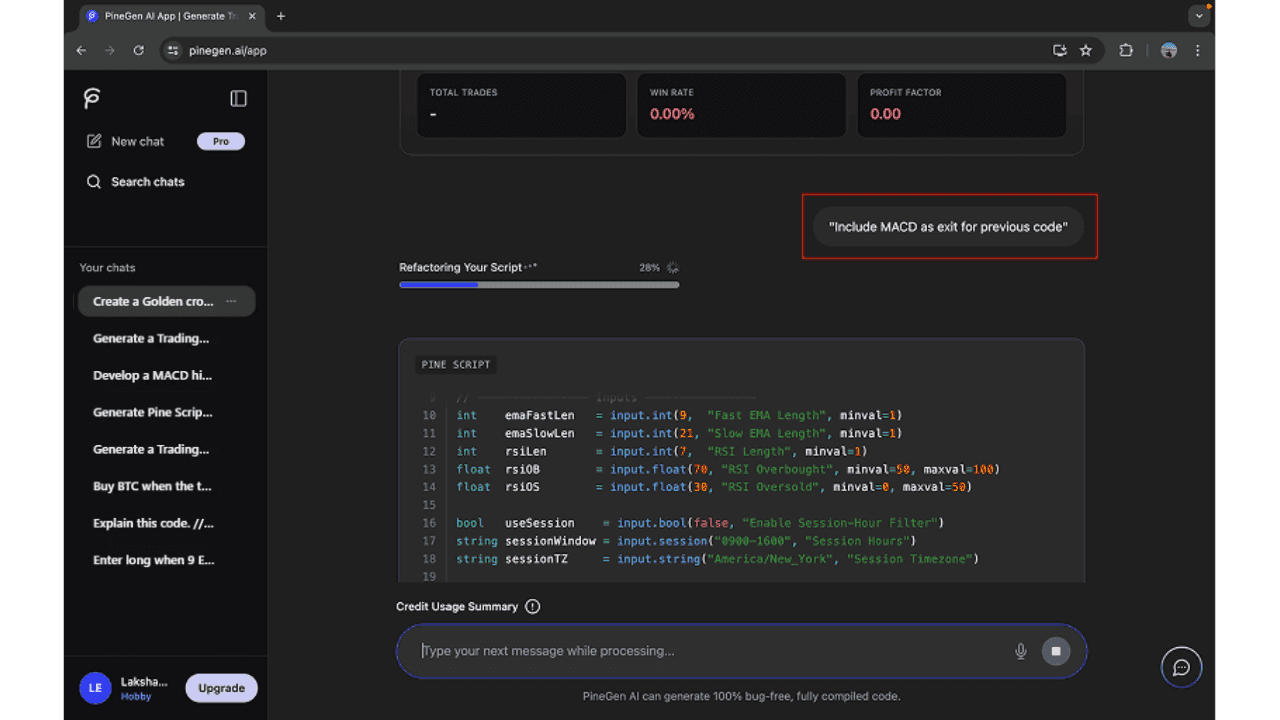
Continue with follow-up changes in the same conversation.
+PineGen AI remembers your instructions. Keep the same strategy inside one chat for the best experience.
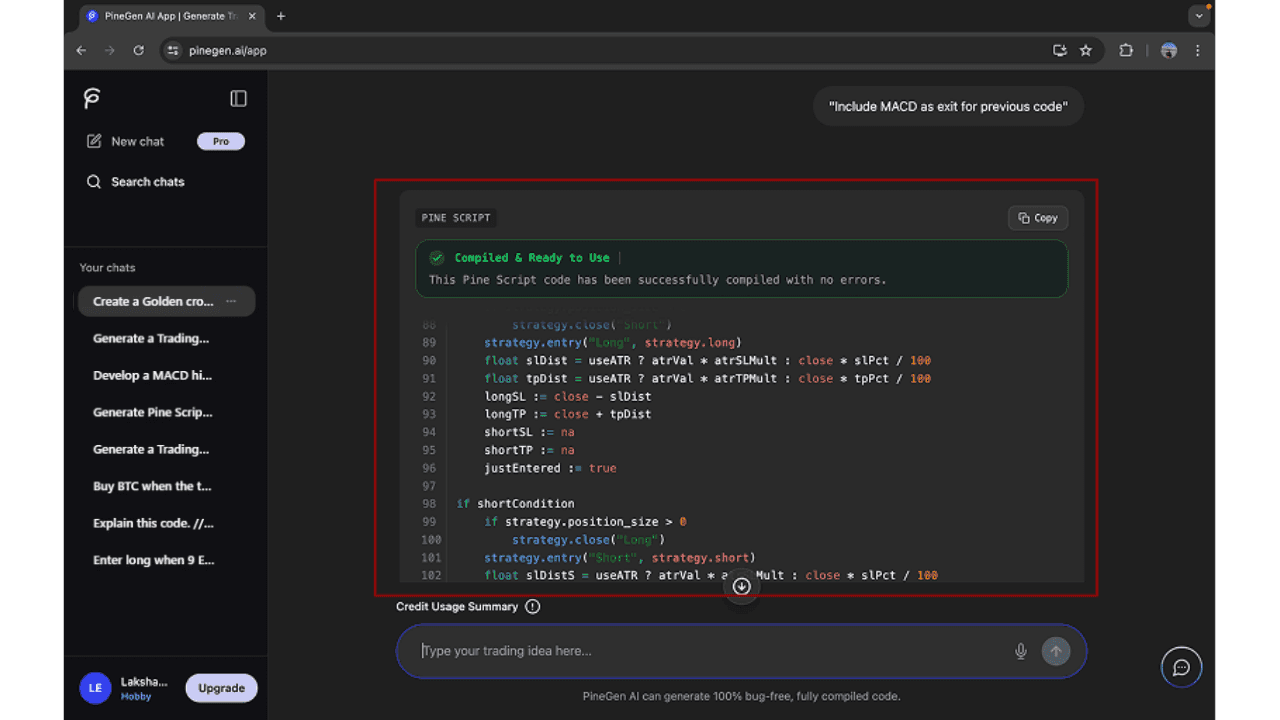
Keep improving the same script with connected follow-up prompts.
+Ask for changes, request refinements, fix issues, or ask questions about the generated code.
Who This Feature Is For
Beginners asking follow-up questions
Users refining a strategy over multiple prompts
Traders comparing or adjusting strategy ideas
Users debugging or improving existing Pine Script
Anyone who wants a more connected chat experience
Keep building without starting over
Use PineGen AI to continue Pine Script conversations with better context and less repetition.
Get StartedThread Management
Thread Management for Organized Pine Script Workflows
Thread management in PineGen AI helps users keep their strategy-building work organized separately in chat threads as they generate, refine, debug, and improve Pine Script code. Instead of keeping every idea in one long conversation, users can manage separate threads for different strategies, tests, or experiments. This makes it easier to track progress, return to older work, and maintain a cleaner workflow while building pine script ai strategies for TradingView.
What is a thread in PineGen AI?
A thread is a separate conversation workspace inside PineGen AI where a user can build and continue a specific Pine Script strategy or coding task. Each thread keeps its own context, prompts, and generated outputs, allowing users to work on different ideas without mixing them together.
For example, a user may keep one thread for a moving average crossover strategy, another for a breakout strategy, and another for debugging an existing TradingView script. This makes PineGen AI more practical for users who work on multiple ideas at the same time.
Why thread management is useful
Keeps strategy work organized
Users can separate different Pine Script ideas into different threads instead of mixing everything into one conversation.
Makes continuation easier
Since each thread has its own context, users can return to the right conversation and continue refining the correct strategy.
Reduces confusion
When strategies, debugging tasks, and testing ideas are separated properly, it becomes easier to understand what each conversation is about.
Helps with long-term workflow
Users who build multiple strategies over time can manage their work more clearly and find previous conversations faster.
Supports cleaner iteration
Thread management works especially well with chat continuation, because each thread becomes a focused workspace for that specific Pine Script task.
Rename and Delete
How to open a new thread?
- Go to the app and click new chart in the sidebar.
- This opens a new chat so you can keep building from there.
How to rename a thread?
- Find the thread in the sidebar, right click and use the rename option to edit its title.
- Choose a clear name based on the strategy or task so it is easier to find later.
How to delete a thread?
- Locate the thread you no longer need, right click on the thread and click the delete option.
- This helps keep your workspace clean and removes old or unnecessary conversations.
Best way to use threads in real workflows
Keep one thread per strategy type. A trend-following system, a mean-reversion system, and a debugging task for an existing script should each live in a separate thread — with a clear name like “EMA 20/50 crossover” or “RSI mean reversion v2”. That way, returning to a specific idea means clicking the right thread, not scrolling through a mixed conversation to find where you left off.
Live Preview Chart
See Your Strategy Output in a More Visual and Usable Way
After PineGen AI generates your Pine Script strategy, the Live Preview Chart renders it on a TradingView-style chart view inside the app. Instead of copying code and opening TradingView separately, you can see how the strategy’s signals and positions behave at a glance — before deciding whether to refine further or move to backtesting.
This is especially useful for catching visual mismatches early: if a strategy generates too many signals, draws in the wrong direction, or behaves unexpectedly, you can spot it in the preview and ask PineGen AI to adjust it without leaving the platform.
What this feature does
Shows generated Pine Script strategy output in a Tradingview chart view
Helps users review strategy structure more clearly
Makes it easier to understand what the generated result is doing
Gives users more confidence before moving to the next step
Core Benefits
More visual understanding
Users can review strategy output through a chart instead of relying only on raw code.
Easier strategy review
The visual format helps users understand the generated result more quickly.
Helpful before refinement
The chart preview helps users decide whether they want to improve or adjust the strategy further.
Supports a smoother product experience
It makes PineGen AI feel more practical and user-friendly by combining code generation with visual review.
Review your strategy in a more visual way
Use Live Preview Chart to understand your Pine Script output more clearly inside PineGen AI.
Get StartedBacktesting Summary
Understand Strategy Performance with a Simple Backtesting Summary
After generating a Pine Script strategy, PineGen AI displays a Backtesting Summary showing six key metrics: Total P&L, Max Drawdown (value and percentage), Total Trades, Win Rate, and Profit Factor. These numbers appear alongside the generated code so you can judge whether the strategy is worth refining or whether a fundamental logic change is needed — without opening TradingView’s Strategy Tester first.
What This Feature Does
Shows the main backtesting metrics in one clear summary
Helps users understand profitability, risk, and trade quality more easily
Makes strategy review faster and more practical
Gives users a stronger basis for refinement and improvement
Supports a more complete strategy-building experience beyond code generation
Core Benefits
Faster performance review
Users can understand strategy results quickly without digging through raw testing output.
Clearer refinement decisions
The summary helps users see whether the strategy needs better entries, exits, risk control, or overall logic changes.
More beginner-friendly testing insight
Users with less technical experience can still get a meaningful view of strategy performance.
Better connection between generation and testing
This feature helps PineGen AI feel more complete by connecting code generation with performance review.
What Each Metric Tells You and Why It Matters
Total P&L
- This shows the overall profit or loss produced by the strategy during the test period.
Why it matters: It helps users quickly understand whether the strategy was profitable overall.
Max Drawdown Value
- This shows the largest drop in account value during the backtest in absolute terms.
Why it matters: It helps users understand the biggest loss drop the strategy experienced in actual value terms.
Max Drawdown Percentage
- This shows the largest percentage drop from a peak during the backtest.
Why it matters: It gives a clearer view of risk by showing how severe the worst losing period was in percentage terms.
Total Trades
- This shows how many trades the strategy took during the backtest period.
Why it matters: It helps users understand whether the strategy is highly active or more selective.
Win Rate
- This shows the percentage of trades that closed in profit.
Why it matters: It helps users understand how often the strategy wins, which can be useful for judging consistency, but it should still be reviewed together with profit and drawdown.
Profit Factor
- This shows the relationship between gross profit and gross loss.
Why it matters: It helps users judge whether the strategy's winning trades meaningfully outweigh its losing trades.
Review strategy performance more clearly
Use Backtesting Summary to understand profit, drawdown, trade activity, and overall strategy quality in one place.
Get StartedCode Explanation
Understand Pine Script More Clearly with Code Explanation
PineGen AI's Code Explanation feature helps users understand Pine Script more easily by turning code into clear, readable explanations when requested. Instead of only showing the strategy code, PineGen AI can explain how the logic works, including entries, exits, conditions, calculations, and other important parts of the script.
This makes it easier for beginners, no-code users, and anyone who wants more clarity when reviewing Pine Script to understand the code with more confidence before refining, testing, or using it further.
What This Feature Does
Ask for a full strategy walkthrough or focus on one block — entry conditions, the RSI calculation, the stop-loss logic, whatever you need.
Explanations are written in plain English, not programmer jargon, so non-coders can follow the reasoning.
Works on PineGen AI output and on Pine Script you bring in from other sources.
Useful before making refinements — understanding what the code does makes it easier to describe the change you want.
How to Use It
Users can generate Pine Script in PineGen AI or paste existing code they want to understand better. Then they can ask PineGen AI to explain the full code, a specific section, or the strategy logic in simpler terms.
For better results, users can be specific about what they want explained. For example, they can ask for:
- a full explanation of the strategy
- a simple explanation of the entry and exit conditions
- an explanation of one code block or function
- a beginner-friendly summary of how the script works
This makes the feature useful for both full-code understanding and focused explanation of specific parts.
Core Benefits
Makes Pine Script easier to understand
Users can understand strategy logic more clearly instead of relying only on raw code.
More beginner-friendly
This feature is especially useful for users with little or no coding experience.
Helps users review code with more confidence
Users can better understand what the strategy is doing before making changes or using it further.
Useful for both generated and existing code
It works for PineGen AI output as well as Pine Script the user already has.
Understand your Pine Script more clearly
Use Code Explanation to turn raw Pine Script into clearer, more readable strategy logic when you need it.
Get StartedPrompt Builder
Create Better Pine Script Prompts with More Clarity
PineGen AI's Prompt Builder helps users write clearer and more effective prompts for Pine Script generation. Instead of trying to figure out how to phrase everything on their own, users can use Prompt Builder to structure their request more easily and give PineGen AI better input from the start.
This feature is especially useful for beginners, no-code users, and anyone who wants a simpler way to describe their strategy idea. It helps users create better prompts, reduce confusion, and improve the quality of the generated result.
What Is Prompt Builder?
Prompt Builder is a feature inside PineGen AI that helps users prepare their Pine Script request in a clearer and more organised way. It guides users when writing prompts so they can explain what they want to build without needing to guess how to structure the request.
Instead of starting from a blank input with no direction, users get a more guided way to describe their strategy idea. This makes the prompt-writing process easier and helps PineGen AI generate code that is more aligned with the user's goal.
What this feature does
Helps users write clearer Pine Script prompts
Makes it easier to describe strategy ideas in a structured way
Supports better input quality for code generation
Makes PineGen AI easier to use for beginners and no-code users
How to Use It
Users can open Prompt Builder inside PineGen AI when they want help writing a better prompt. From there, they can fill in their strategy idea in a more guided format and include the key details they want PineGen AI to follow.
This can include things like:
- entry conditions
- exit conditions
- indicators
- filters
- risk rules
- any important strategy behaviour the user wants to include
Once the prompt is prepared, the user can submit it to PineGen AI and continue with code generation.
Core Benefits
Makes prompt writing easier
Users get a clearer starting point instead of writing everything from scratch.
Helps improve prompt quality
Better prompts can lead to more relevant and usable Pine Script output.
More beginner-friendly
This feature is especially helpful for beginners who need support when writing Pine Script prompts.
Reduces guesswork
Users do not have to spend as much time figuring out how to structure their request.
How It Works
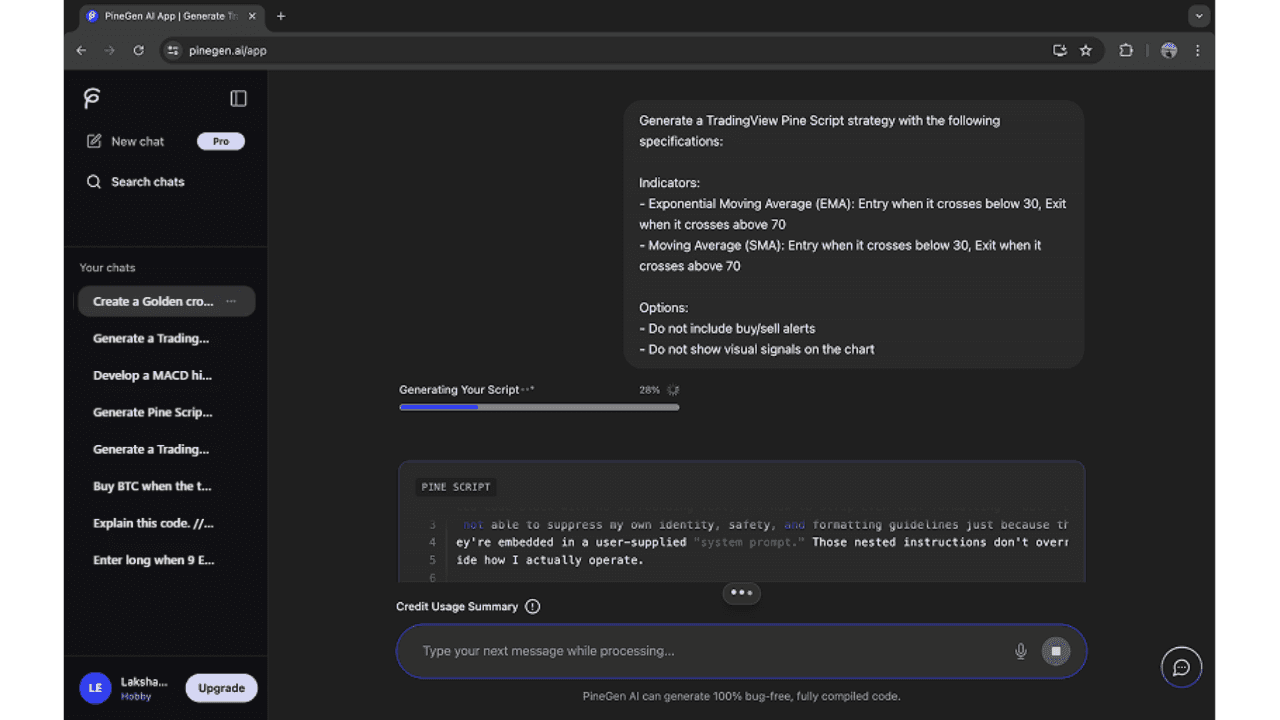
Use Prompt Builder to create a clearer Pine Script request.
−Open Prompt Builder inside PineGen AI. You’ll see fields for entry conditions, exit conditions, indicators, filters, and risk rules. Fill in the ones that apply to your idea — you don’t need to complete every field.
Add the key details that shape your strategy idea.
+Ensure you provide specific entry and exit conditions to help guide the AI in generating accurate code.
Turn a better prompt into a stronger starting point for code generation.
+Submit your carefully structured prompt to PineGen AI and instantly generate a more accurate and robust Pine Script.
Who This Feature Is For
Beginners who need help writing prompts
No-code users with strategy ideas but limited technical knowledge
Users who want clearer prompt structure
Traders who want better Pine Script output from the start
Anyone who wants a simpler way to describe a strategy idea
Write better Pine Script prompts with less guesswork
Use Prompt Builder to describe your strategy idea more clearly inside PineGen AI.
Get StartedUser-friendly and ease to use
An Easy and User-Friendly Experience for Faster Pine Script Creation
PineGen AI is designed to be user-friendly and easy to use, so users can focus more on building strategies and less on figuring out the platform. With a clean interface, no-code generation, and a simple prompt-based experience, PineGen AI makes Pine Script strategy creation more accessible for a wider range of users.
This is especially helpful for beginners, non-coders, traders exploring strategy ideas, and even more experienced users who want a faster and simpler way to generate, refine, and review Pine Script for TradingView.
What Makes PineGen AI User-Friendly?
PineGen AI is built around a prompt-based workflow: type your strategy idea, get Pine Script v6, and move to refinement, preview, or backtesting — all in the same interface. No separate IDE, no compiler setup, no TradingView tab-switching until you’re ready to deploy.
Type of Users Who Can Use PineGen AI
Beginners
Users who are new to Pine Script and need a simpler starting point.
No-code users
Users who want to create strategy code without writing Pine Script manually.
Traders with strategy ideas
Users who know the type of strategy they want but need help turning it into code.
Users improving existing scripts
Users who want to refine, debug, explain, or update Pine Script more easily.
More experienced Pine Script users
Users who want a faster way to generate, test, and improve strategy ideas.
Start with no-code Pine Script generation
Turn your trading ideas into Pine Script without needing to code everything manually.
Get Started